
Can AI Really Turn a PDF Into a Useful Video?

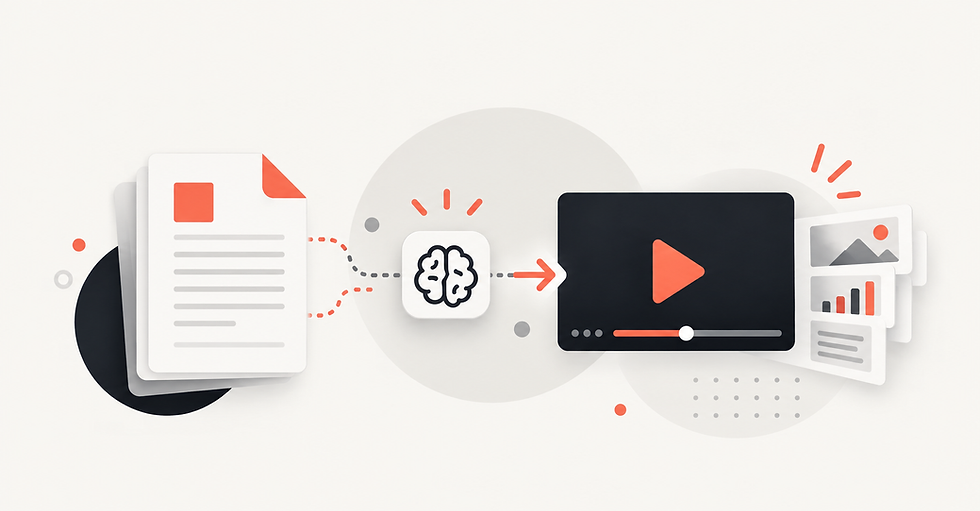
AI can turn a PDF into a video. The more important question is whether that video is actually useful.
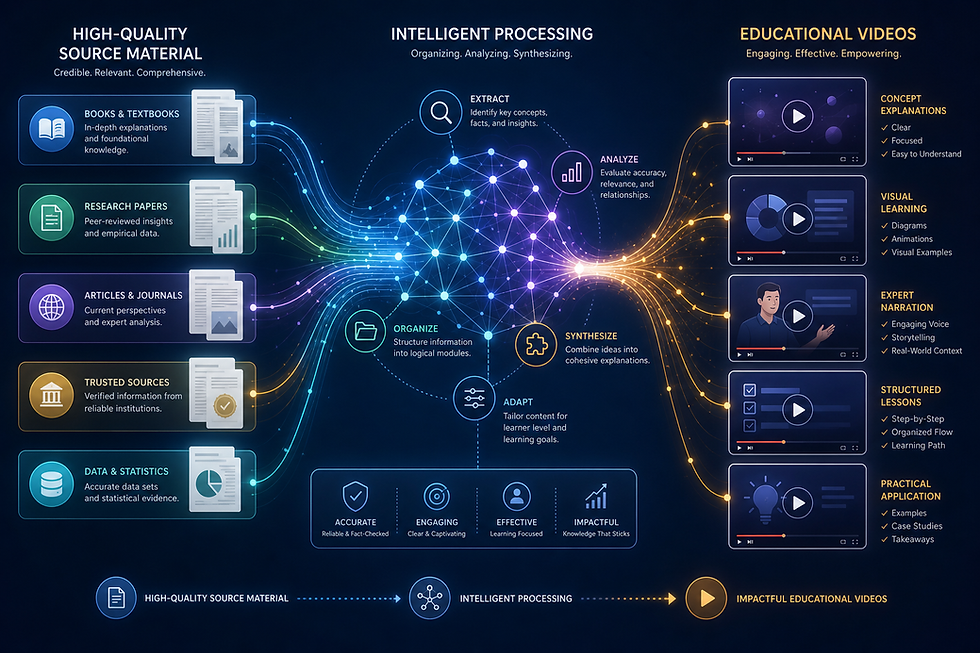
A useful video should do more than move text around a screen. It should help viewers follow the information, understand the main ideas, and stay engaged with material that may otherwise be difficult to read.
That is where the quality of the source document, the structure of the content, and the way the AI presents it all matter.
For textbooks, training documents, research papers, manuals, course notes, and similar PDFs, AI can provide a practical way to transform written material into a more visual format without requiring a full video production process.
Why Turning a PDF Into a Video Is Not as Simple as It Sounds
A PDF and a video communicate information differently.
A document can contain long paragraphs, detailed explanations, charts, headings, and references. Readers can move backward and forward at their own pace.
A video needs a clearer sequence.
The information has to be divided into scenes, presented in a logical order, and supported with visuals that make sense for the topic.
Traditionally, this means someone has to:
Read the entire document
Identify important ideas
Write or adapt a script
Plan individual scenes
Create visuals
Arrange the information into a sequence
Edit the final video
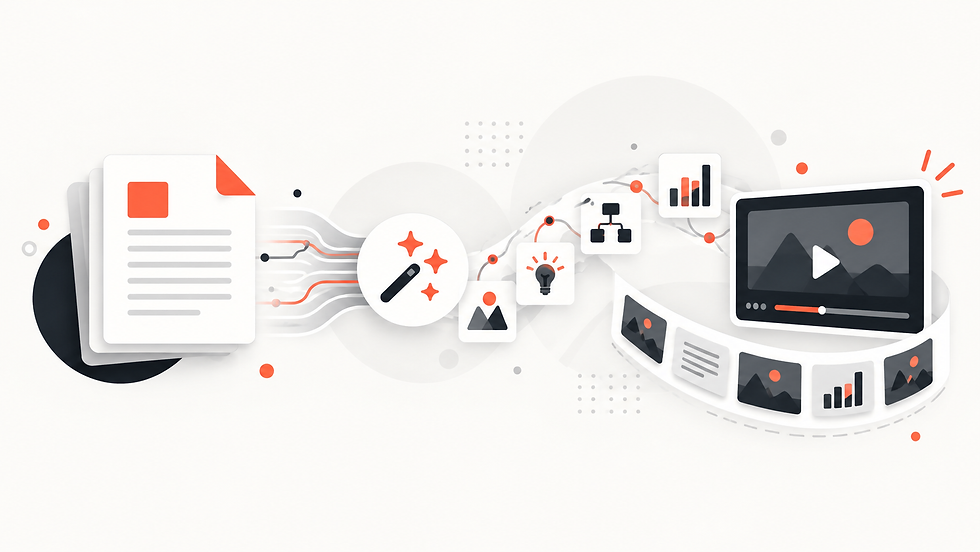
AI can reduce much of this manual work by using the original document as the source.
What Makes an AI-Generated PDF Video Useful?
Not every automatically generated video will be equally effective.
Several factors can influence the result.
Clear Source Material
Well-structured PDFs are usually easier to transform.
Documents with headings, sections, logical topic progression, and clear explanations provide a stronger foundation than files containing poorly organized text.
If the source material is confusing, AI may also have difficulty presenting it clearly.
Appropriate Visuals
Visuals should support the information rather than simply decorate the video.
A process may be easier to understand through a diagram. A historical topic may benefit from illustrative scenes, while technical training might need a cleaner and more structured presentation.
The visual direction should match the material.
Logical Structure
A useful video should help viewers understand how ideas connect.
Instead of presenting disconnected pieces of information, the content should move naturally from one topic to the next.
This is particularly important for educational, research, and training material.
Where AI PDF-to-Video Can Be Most Useful
AI-generated videos can be valuable when the goal is to create an additional way to consume existing material.
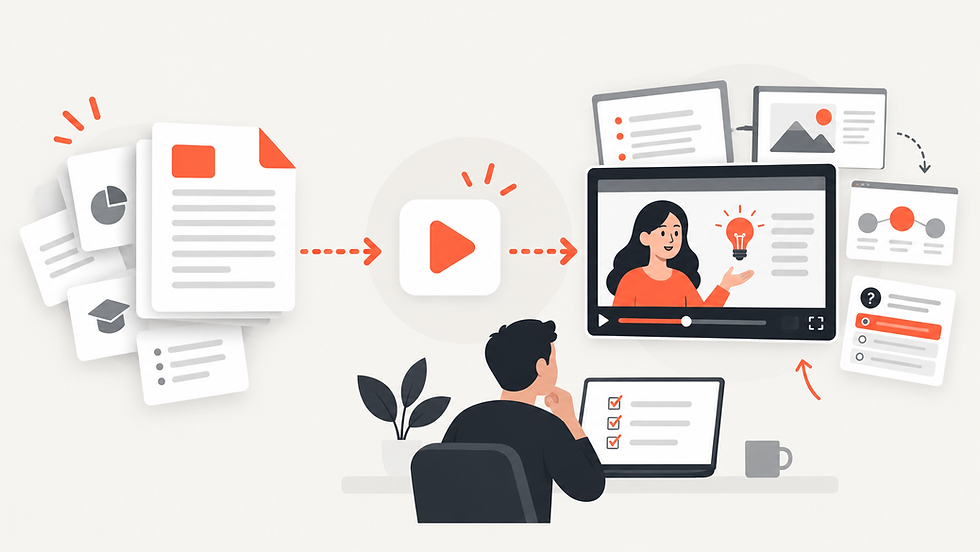
For example, a teacher might turn course documents into supporting video lessons.
A training team could transform internal manuals into video-based learning material.
A student may want another way to review lecture notes.
A researcher might use visual content to make findings easier to communicate to a wider audience.
In these situations, the video does not necessarily replace the original PDF. Instead, it becomes another format for explaining the same information.
Where Human Review Still Matters
AI can simplify the production process, but users should still review the final result.
Important documents may contain technical details, specialized terminology, statistics, or information where accuracy matters.
Before using an AI-generated video for training, education, research communication, or professional purposes, it is worth checking:
Whether important information is represented correctly
Whether anything essential was omitted
Whether the visual sequence makes sense
Whether the video matches the intended audience
Whether technical terminology has been presented appropriately
AI can accelerate the workflow, but thoughtful review remains valuable.
How Explisera Approaches PDF-to-Video
Explisera is designed specifically around turning text-based PDFs into visual AI-generated videos.
The workflow is kept simple.
First, users upload a PDF such as a textbook, course document, training manual, research paper, or similar source.
Next, they choose a visual direction.
Explisera's Standard+ plan provides access to more than 72 visual styles, including whiteboard-inspired explanations, process-flow diagrams, minimalist visuals, paper-cutout formats, historical-inspired presentations, and more expressive styles.
The platform then transforms the source material into scenes and generates a cohesive video for the user to review.
Benefits of Using Explisera
Explisera focuses on reducing the complexity normally involved in video production.
Its main features include:
AI PDF-to-video generation
Automated scene creation
More than 72 visual styles with Standard+
Support for educational, training, research, and professional PDFs
Support for longer projects on Standard+
Higher monthly generation capacity for paid users
Priority generation with Standard+
A free plan with no credit card required to start
This can make PDF-to-video creation more accessible for people who do not have experience with traditional editing software. Can AI Really Turn a PDF Into a Useful Video
Can AI Really Turn a PDF Into a Useful Video?
Yes, but usefulness depends on more than simply uploading a file.
A strong source document, appropriate visual presentation, logical structure, and final review all contribute to the quality of the result.
AI does not remove the need for good information. What it can remove is much of the production work involved in turning that information into video.
For people who already have valuable content inside PDFs, platforms such as Explisera can provide a faster way to transform that material into a visual format that is easier to watch, review, and share.
Comments