
One PDF, 72+ Visual Directions With Explisera


A single PDF can contain valuable information, but there is no single “right” way to present that information visually.
A training manual may need a clean, structured look. A history document may benefit from a more illustrative style. A technical process may be easier to understand with diagrams, while educational content may work better with a whiteboard or more expressive visual format.
That is why visual direction matters.
With Explisera, one PDF can be transformed using more than 72 visual styles, giving users more flexibility in how the same source material is presented.
Why Visual Style Matters
The way information looks can influence how easy it is to follow.
A dense process shown with decorative visuals may become more confusing. A highly technical topic presented in a playful style may not feel appropriate for the audience.
The best visual direction should support the content rather than distract from it.
For example:
A workflow can benefit from process-flow visuals
A classroom topic may work well with whiteboard-style explanations
Historical material may suit a more period-inspired presentation
Simple concepts may be clearer with minimalist illustrations
More expressive subjects may benefit from stylized visual scenes
The content remains important, but the presentation can help shape how the viewer experiences it.
One Source, Many Ways to Present It
Traditionally, changing the visual direction of a video can require significant extra work.
A new style may mean redesigning graphics, rebuilding scenes, creating new illustrations, or changing the overall editing approach.
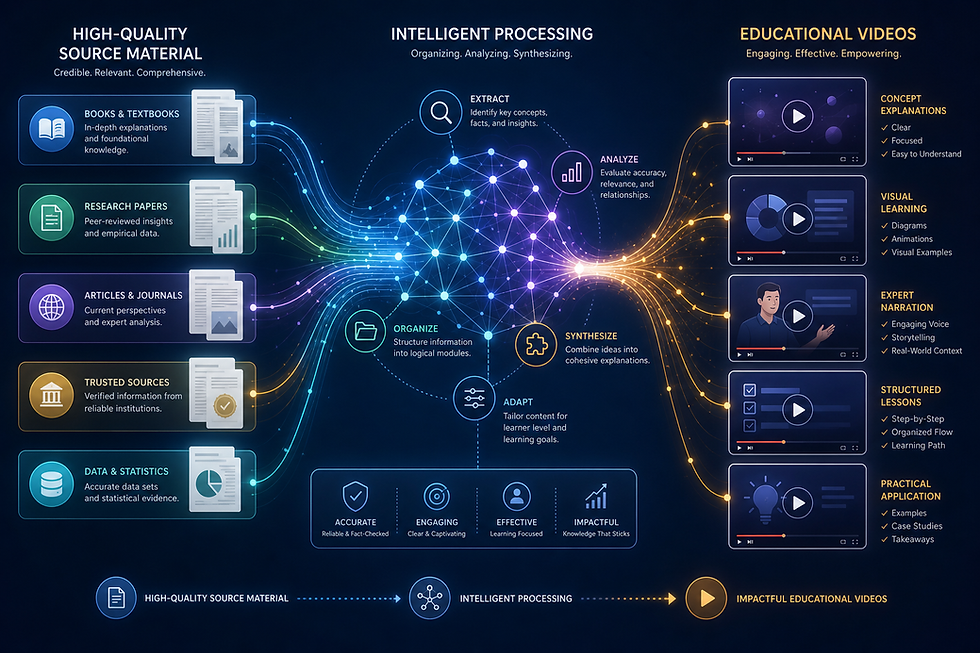
Explisera simplifies this by allowing users to choose a visual direction before the video is generated.
The same source PDF can therefore become the basis for very different types of visual presentations.
This can be useful when the same information needs to reach different audiences.
A training document for employees may need a professional look, while a version used for education may benefit from something more visual and engaging.
The source material does not have to change. The presentation can.
What Types of Visual Styles Are Available?
Explisera’s Standard+ plan includes access to more than 72 visual styles.
These can include directions such as:
Whiteboard-style explainers
Process-flow diagrams
Minimalist illustrations
Paper-cutout visuals
Historical-inspired scenes
Manga-inspired visuals
Clean educational presentations
More expressive visual formats
This variety gives users the ability to choose a style that better fits the subject, audience, and purpose of the video.
Rather than forcing every document into the same template, Explisera provides multiple ways to interpret the material visually.
Matching the Style to the Content
Choosing a style should not be random.
A useful approach is to think about three things: the subject, the audience, and the purpose.
Subject
What type of information is being explained?
Technical systems, workflows, and procedures may benefit from structured diagrams. Historical or narrative topics may work better with more illustrative visuals.
Audience
Who will watch the video?
Corporate learners may prefer a clean and professional presentation, while students may respond better to something more visual or expressive.
Purpose
What do you want the viewer to do?
A training video may need clarity and consistency. A study video may need to make the material easier to revisit. A research presentation may need to help viewers understand the main findings quickly.
The visual direction should support that goal.
Why This Is Useful for Different Types of Content
Explisera can be used with a range of text-based PDFs, including:
Textbooks
Course notes
Training manuals
Research papers
Internal documents
Educational material
Reports
Different documents naturally call for different presentations.
A textbook chapter does not need to look like an employee onboarding video. A research paper does not need to look like a classroom explainer.
Having multiple visual directions gives users more control over how the final video feels without requiring them to manually design every scene.
How the Explisera Workflow Works
The process remains simple even with a large style library.
First, upload your PDF.
Next, choose the visual direction that best matches the material.
Then, generate the video.
Explisera transforms the source into scenes and creates a cohesive AI-generated video for you to review.
This allows the document to remain the foundation while the visual style changes how the information is presented.
More Choice Without More Production Complexity Explisera PDF
More visual options would normally mean more production work.
With traditional video creation, experimenting with different styles may require additional design, editing, or animation.
Explisera reduces that complexity by making visual direction part of the generation workflow.
Standard+ users also receive benefits such as:
Access to the full 72+ visual style library
Higher monthly generation capacity
Support for longer PDF projects
Priority generation
A Free plan is also available for users who want to try the core PDF-to-video workflow without providing a credit card.
Give the Same Content a Different Experience
A PDF does not have to be limited to one visual interpretation.
The same information can be presented as a clean explainer, a diagram-driven video, a more illustrative lesson, or a more expressive visual experience depending on the subject and audience.
With Explisera, users can take one document and explore more than 72 visual directions without rebuilding the content from scratch.
The information stays the same.
What changes is how people experience it.


Comments