
PDF to Video: The Complete Beginner’s Guide


Why Convert a PDF to Video?
If you are new to PDF to video conversion, the idea is simple: take information that was designed to be read and present it in a format designed to be watched. The challenge is doing that without losing the meaning of the original document.
PDFs are widely used because they preserve structure and are easy to distribute. They are ideal for manuals, textbooks, reports, research papers, and course notes. However, long PDFs often require sustained attention. Readers have to decide what is important, connect ideas across pages, and create their own mental structure.
A video can guide the audience through that same material in a more controlled sequence. Visuals, scene changes, and narration can make the information feel more approachable. This is why document-to-video workflows are becoming useful for education, training, onboarding, and research communication.
What a PDF to Video Converter Actually Does
A basic PDF to video converter might simply turn pages into a slideshow. That can be useful for some situations, but it does not necessarily make the document easier to understand.
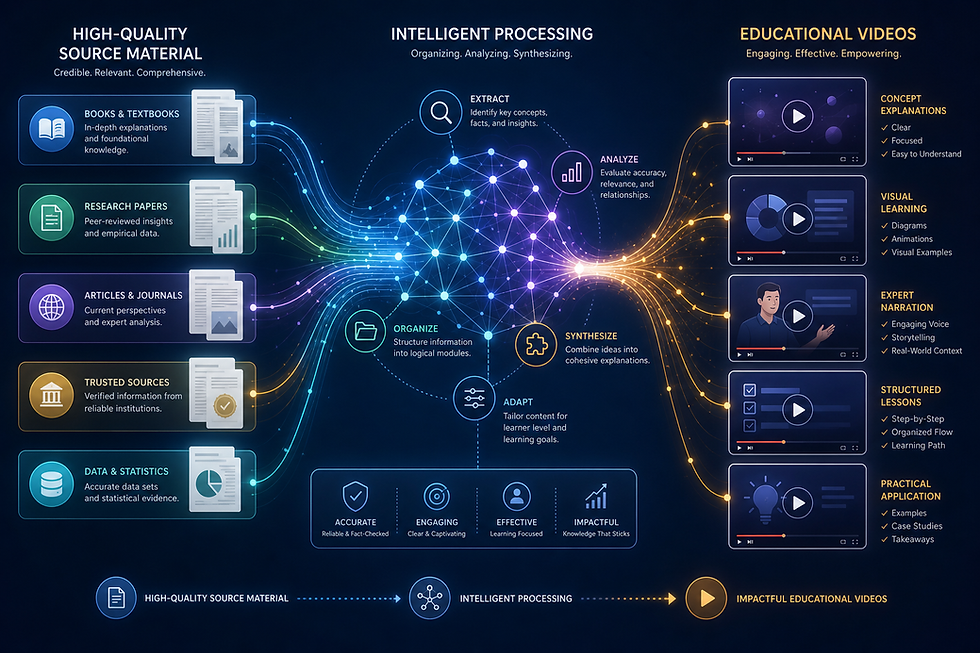
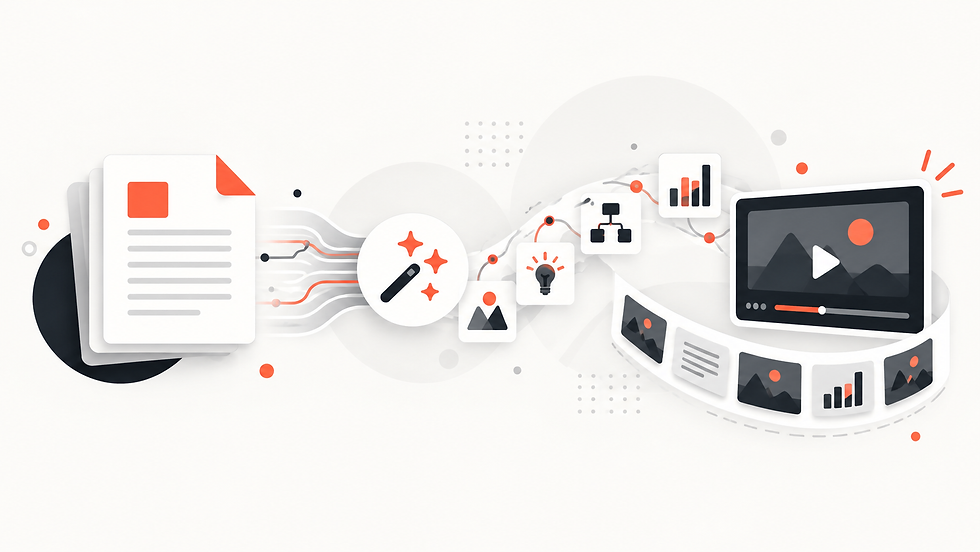
An AI PDF video workflow goes further. It can analyze the text, identify the structure of the material, organize key ideas into scenes, and generate a visual explanation. The objective is to adapt the source for video rather than merely display the PDF on screen.
Explisera is built around this approach. Users upload a text-based PDF, choose a visual direction, and generate a video based on the source. The platform supports more than 72 visual styles, allowing the presentation to fit different types of material without requiring the user to build every scene manually.
Step-by-Step: How to Turn a Document Into Video
The first step is to prepare your PDF. Make sure the text is readable and the document has a clear structure. Headings, sections, and logical paragraph order can help the system interpret the content. If the PDF contains pages that are unrelated to the intended video, consider removing them first.
Next, upload the PDF to Explisera. The document becomes the foundation of the video generation process.
Then choose a visual style. Think about the audience and purpose. A corporate procedure may need a clean, professional presentation. A school lesson may benefit from brighter or more illustrative visuals. A research summary may need a style that keeps attention on the information.
After that, generate the video. Explisera turns the source into scenes and assembles them into a cohesive visual experience. Finally, review the result. Check important names, numbers, technical statements, and conclusions against the original document before using the video publicly.
Common PDF to Video Mistakes Beginners Should Avoid
One common mistake is trying to include every sentence from a long PDF. Video works best when information is paced and structured. The goal should be to explain the material clearly, not reproduce the document word for word.
Another mistake is choosing a visual style based only on appearance. The best style is the one that supports the subject and audience. An overly dramatic look can distract from a technical manual, while an overly plain presentation may reduce engagement for a visual learning topic.
Beginners should also avoid treating AI-generated output as final without review. AI can organize and present source material quickly, but it can still misunderstand context. A short review against the PDF helps protect accuracy.
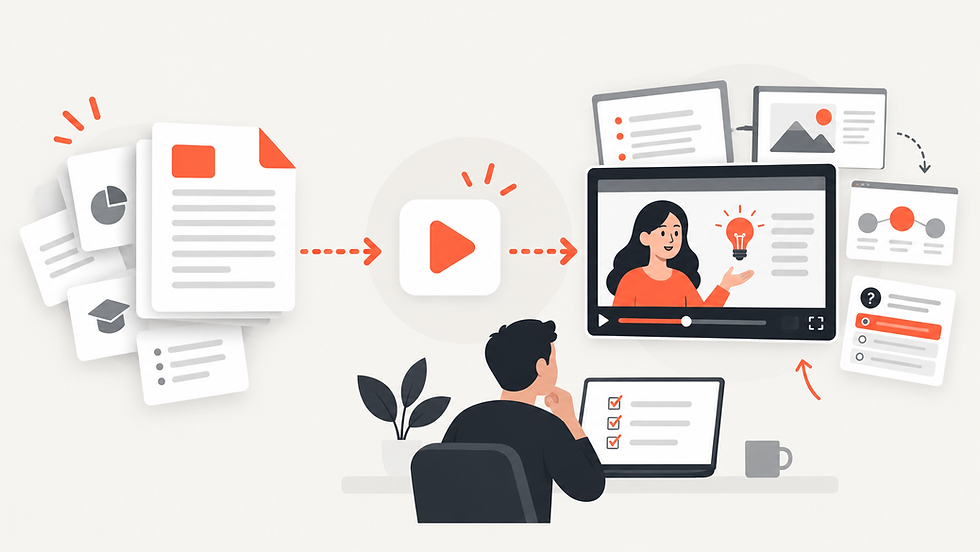
For newcomers, the biggest advantage of a focused PDF to video tool is that it removes much of the complexity of traditional video production. Explisera keeps the workflow direct: provide the source, choose how it should look, generate the video, and review it. That makes document-to-video creation accessible even to people who have never edited a video before.
Comments